
Apple’s Guided Access Feature Limits Use of Particular Apps on your iPhone or iPad
If you’d like to allow a child, friend, or colleague to enjoy a specific app on your iPhone or iPad while keeping them focused and preventing access to everything else on the device, check out Apple’s Guided Access feature.


Apple’s Guided Access Feature Limits Use of Particular Apps on your iPhone or iPad
iPhones and iPads are highly personal devices, but you might want to let someone else use a particular app on yours without letting them poke through Messages, Mail, and Photos. For example, a child could play a game, a volunteer could check in attendees, or a friend could take photos. To allow this, Apple created Guided Access, which you turn on in Settings > Accessibility—give it an easily remembered passcode and decide if you want to let the display auto-lock. Then, to turn on Guided Access, open the app you want to share and triple-click the side or top button. Options let you control buttons, the accelerometer, software keyboards, touch input, and a time limit. To end a Guided Access session, triple-click the side or top button, enter the Guided Access passcode, and tap End.

Read more:
Not sure your Macs are ready for what’s next?
Book a free, no-pressure call. We’ll review your fleet, flag what needs attention, and you’ll leave with a plan either way.
Let’s Talk →Apple news worth your inbox.
One monthly note on the updates that actually affect your workplace. No noise.
Keep reading
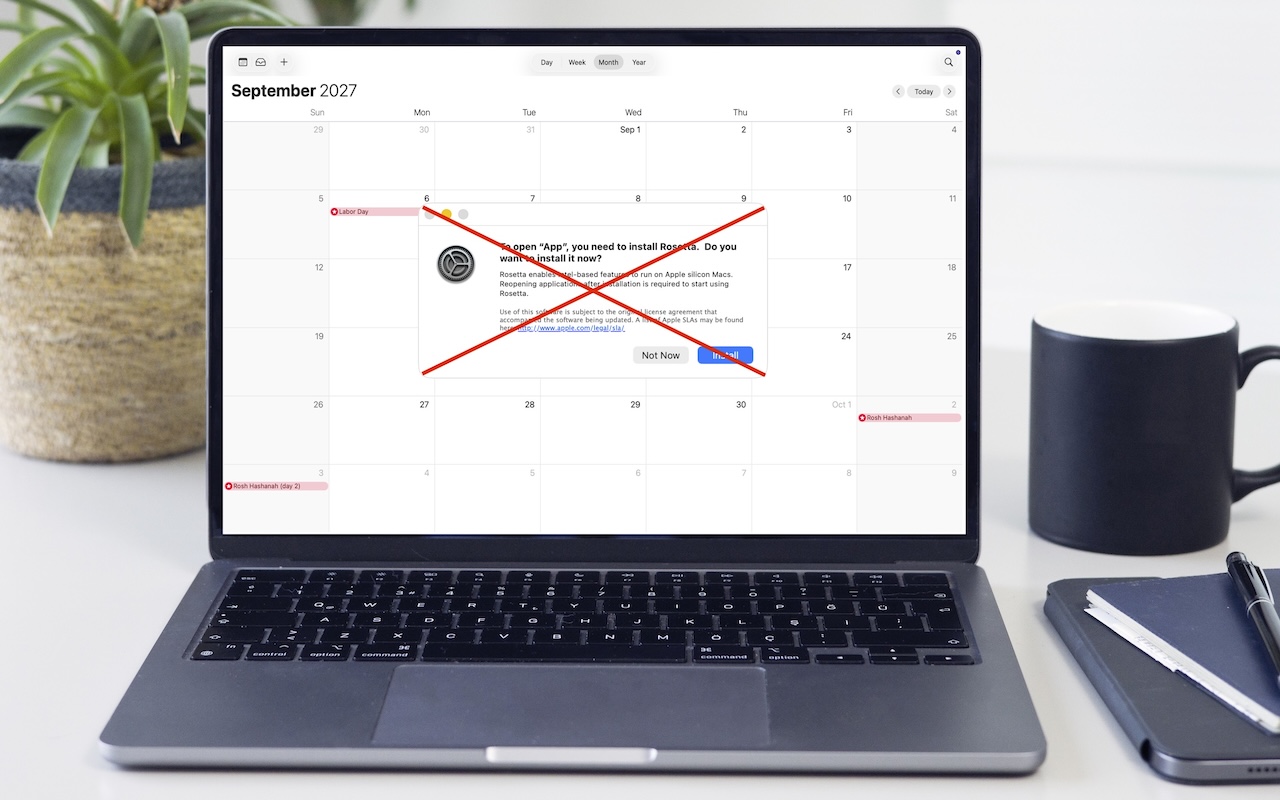
Intel-Based Apps Will Stop Working in macOS 28

Be Alert for Deepfake Phishing Scams
