Did You Know You Can Customize the Columns in a Finder Window’s List View?

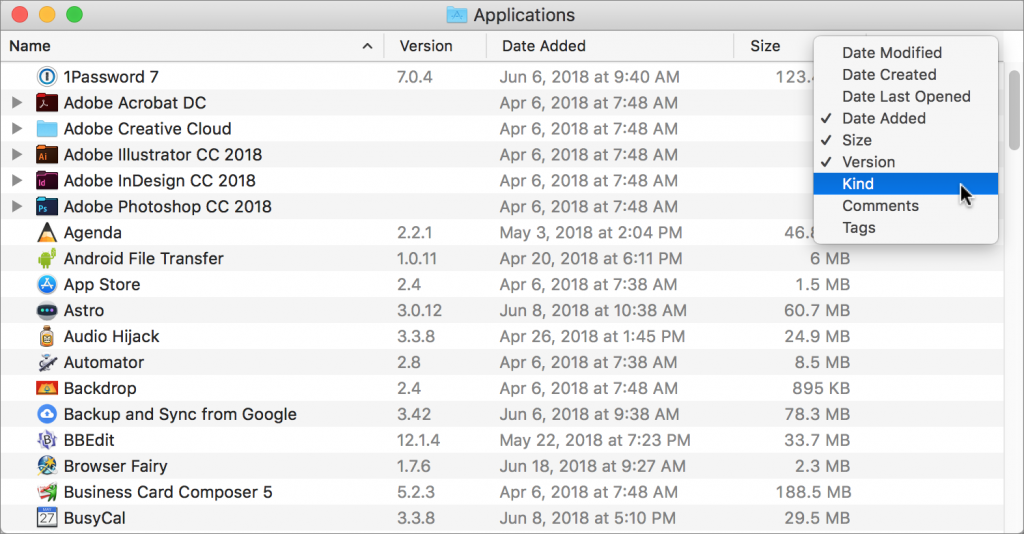
When a Mac folder contains a lot of files, the Finder’s List view often works best, since it lets you focus on a single folder and easily sort the contents by clicking the different columns: Name, Date Modified, Size, and Kind. But did you know that you can resize columns, rearrange them, and even add and remove columns? To resize a column, drag the vertical separator line to the right of its name. To move a column, click and hold on its name, and then drag it to the desired position. And to add or remove a column, Control- or right-click any column header and select or deselect the desired column. Choose from Date Modified, Date Created, Date Last Opened, Date Added, Size, Version, Kind, Comments, and Tags.
Not sure your Macs are ready for what’s next?
Book a free, no-pressure call. We’ll review your fleet, flag what needs attention, and you’ll leave with a plan either way.
Let’s Talk →Apple news worth your inbox.
One monthly note on the updates that actually affect your workplace. No noise.
Keep reading

Keep Your Ringer Quiet and Your Alarms Loud in iOS 27

That Free AI Skill Might Be Doing More Than It Says