
Don’t Use Safari? Here’s How To Copy Those Two-Factor Authentication Codes from Messages Quicker.
Need to enter SMS-initiated two-factor authentication codes manually in Web browsers other than Safari? Try this hidden trick for quickly copying and pasting them instead of retyping all those numbers.

Don’t Use Safari? Here’s How To Copy Those Two-Factor Authentication Codes from Messages Quicker.
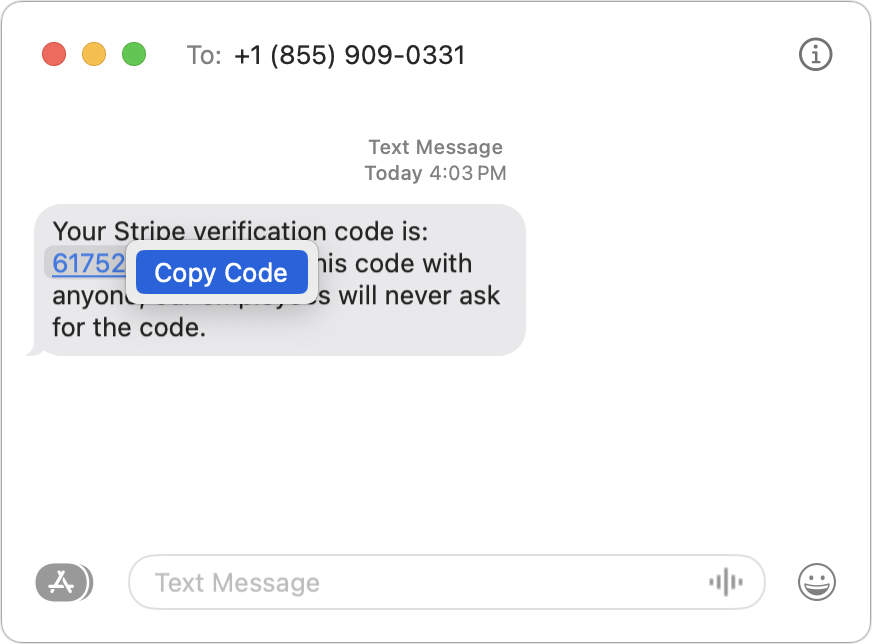
One welcome feature of Safari is its automatic detection and auto-filling of SMS-based two-factor authentication codes you receive in Messages. It allows you to complete your login quickly, without having to retrieve the code from Messages. But what if you use a different Web browser, like Google Chrome, Firefox, Brave, or Arc? Apple doesn’t allow other developers access to those codes in Messages, but Messages itself recognizes the verification code, marking it with an underline. Rather than transcribing the code manually like an animal, you can Control-click the underlined numbers and choose Copy Code. Then, switch to your Web browser and press Command-V to paste it. Not all websites accept pasted codes, but most will, even if they present a custom interface.
(Featured image by iStock.com/Galeanu Mihai)
More great tips from the archives…
- Two Secret Key Combos for Forward Delete on the Magic and MacBook Keyboards
- iCloud Photo Library Users: Do NOT Turn Off iCloud
- Ever Wondered Which Words to Capitalize in a Title? Use Capitalize My Title!
- Tips for Setting Up a Comfortable and Effective Home Work Space
- Tips for Better Videoconferencing
- Set Your Preferred Name and Photo for Messages on iOS
- The Fastest Way to Change Wi-Fi Networks in iOS
- What to Put at the End of Your Emails
- Apple Business Manager Is a Win for Apple-Driven Workplaces
Not sure your Macs are ready for what’s next?
Book a free, no-pressure call. We’ll review your fleet, flag what needs attention, and you’ll leave with a plan either way.
Let’s Talk →Apple news worth your inbox.
One monthly note on the updates that actually affect your workplace. No noise.
Keep reading
Intel-Based Apps Will Stop Working in macOS 28

Be Alert for Deepfake Phishing Scams
