
customization
Crowded Menu Bar? Learn How to Rearrange the Icons
If your Mac’s menu bar is a mess, you can use the Command key to rearrange the icons and remove those you never use.

Crowded Menu Bar? Learn How to Rearrange the Icons
Is your Mac’s menu bar overwhelmed with icons? They’re helpful little critters, but finding one can be difficult when you have too many and they’re in no particular order. The hidden trick to cleaning up your menu bar relies on the Command key.
- Rearrange the menu bar icons in an order that makes sense to you by Command-dragging them around. You can’t move the Control Center icon or put anything to its right, but every other icon is movable.
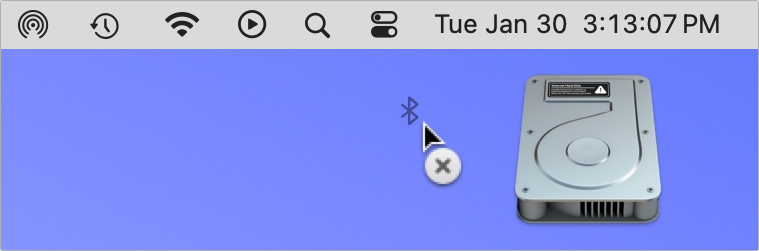
- Delete unnecessary Apple-provided status icons by holding down Command and dragging them off the menu bar. (To put one back, select the “Show icon-name status in menu bar” checkbox in its System Settings screen.) You can’t remove the clock, Control Center, or the Siri icon this way, though you can turn off Siri in System Settings > Siri & Spotlight. Command-dragging to delete doesn’t work for non-Apple apps; instead, look for a preference in the app itself.
Learn more:
Apple Premium Technical Partner
Deep Apple expertise, wherever your team works.
Not sure your Macs are ready for what’s next?
Book a free, no-pressure call. We’ll review your fleet, flag what needs attention, and you’ll leave with a plan either way.
Let’s Talk →The CreativeTechs Way
Apple news worth your inbox.
One monthly note on the updates that actually affect your workplace. No noise.
Keep reading

Mac
Intel-Based Apps Will Stop Working in macOS 28
April 3, 2026 · 1 min read

Privacy
Be Alert for Deepfake Phishing Scams
November 9, 2025 · 2 min read

hardware
Charge Your MacBook with the Right Power Adapter
November 7, 2025 · 2 min read