
Use Dropbox’s Selective Sync to Save Space on Small Drives

Use Dropbox’s Selective Sync to Save Space on Small Drives
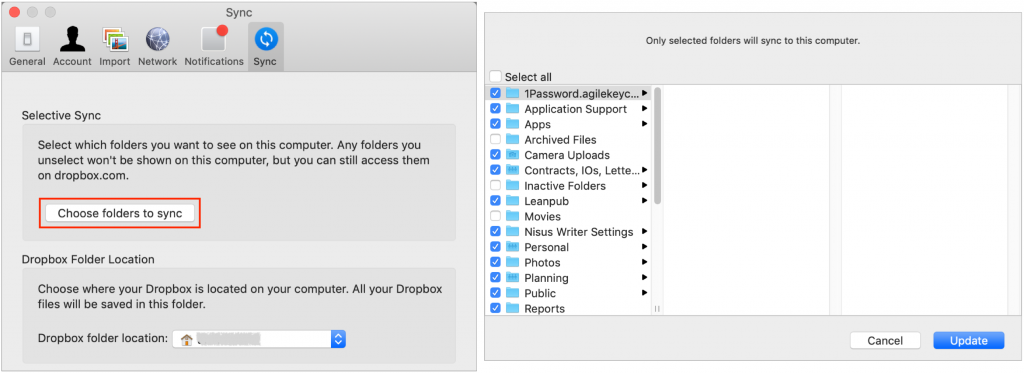
If you’re like many of our clients who use Dropbox intensively, you have a desktop Mac with a large drive and a MacBook with much less drive space. How do you prevent your large Dropbox account from overwhelming the laptop Mac’s available storage? The answer is Dropbox’s Selective Sync feature. On the MacBook, click the Dropbox icon in the menu bar, click your avatar in the upper-right corner, and choose Preferences. In the Preferences window, click Sync and then click the Choose Folders to Sync button. Deselect the folders you want to prevent from syncing to the MacBook and click Update. If you need to access any files in those folders from the MacBook, go to dropbox.com in your Web browser instead, or adjust your Sync preferences to bring in the needed folder.
(Featured image based on a photo by Daniele Levis Pelusi on Unsplash)
How about some other tips while you are here?
- Is Your Photos Library Too Big? Here’s How to Move It to an External Hard Drive
- Running Low on Space on Your Mac? Here’s How to Clear Unnecessary Data
- Six Tips for Writing Better Email
- What to Do If You Run Low on iCloud Storage Space
Not sure your Macs are ready for what’s next?
Book a free, no-pressure call. We’ll review your fleet, flag what needs attention, and you’ll leave with a plan either way.
Let’s Talk →Apple news worth your inbox.
One monthly note on the updates that actually affect your workplace. No noise.
Keep reading
Intel-Based Apps Will Stop Working in macOS 28

Be Alert for Deepfake Phishing Scams
