
Recover Drive Space by Deleting Old and Unnecessary iOS Device Backups

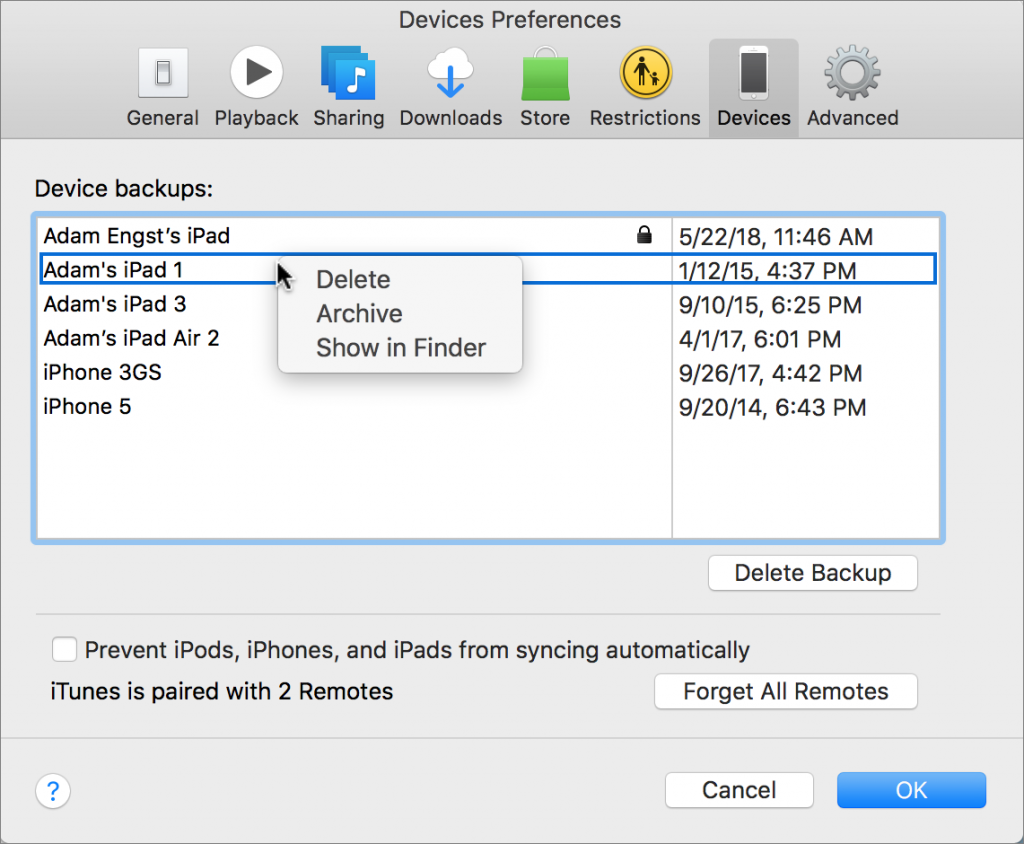
If you’ve been good about backing up your iOS devices to iTunes on your Mac or to iCloud, give yourself a gold star! Both backup destinations are fine, but there’s one potential downside to iTunes backups: they can consume a lot of space on your Mac’s drive. In iTunes, go to iTunes > Preferences > Devices, where you’ll see all the iOS device backups that iTunes has stored. If there are multiple older backups or any for devices you no longer own, you can get rid of them. Control-click the offending backup, and choose Delete. Or, if you want to check how large a backup is first, instead choose Show In Finder, and then in the Finder, choose File > Get Info. When you’re ready, move the selected backup folder to the Trash.
Not sure your Macs are ready for what’s next?
Book a free, no-pressure call. We’ll review your fleet, flag what needs attention, and you’ll leave with a plan either way.
Let’s Talk →Apple news worth your inbox.
One monthly note on the updates that actually affect your workplace. No noise.
Keep reading
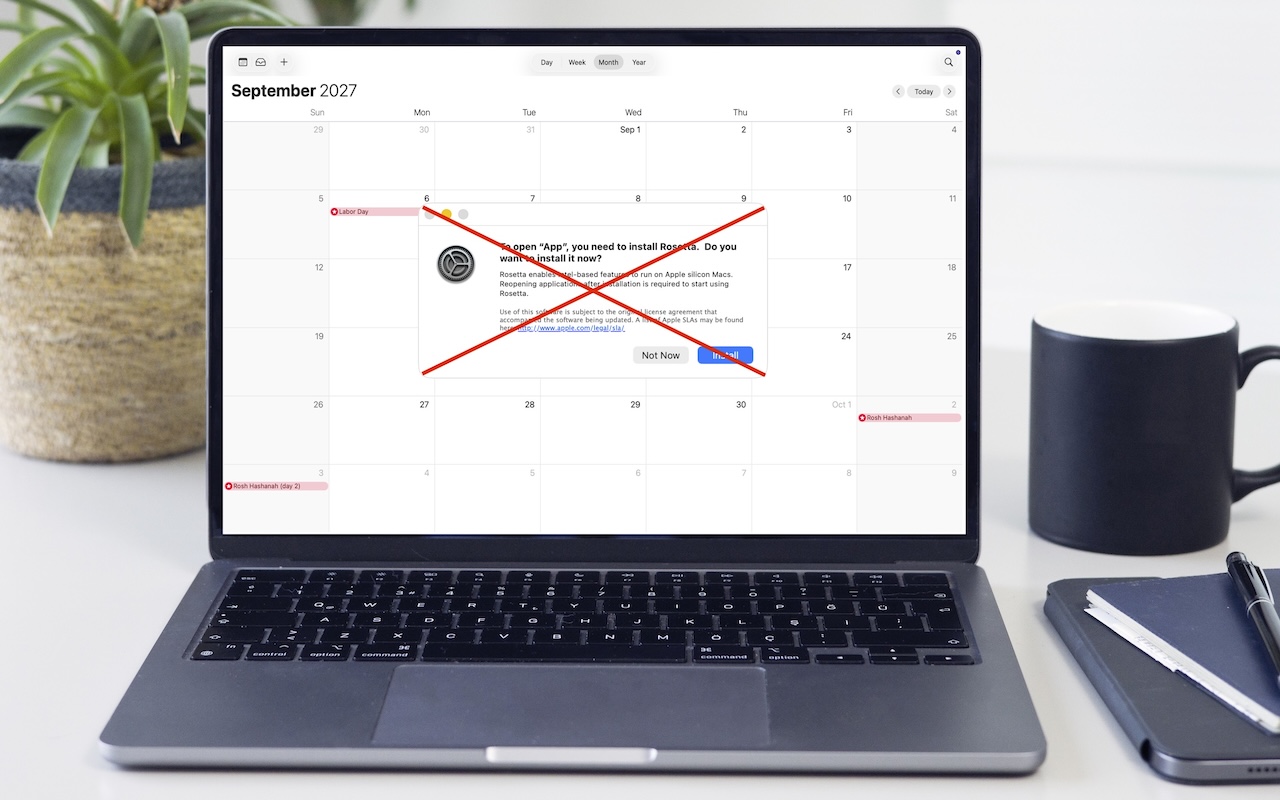
Intel-Based Apps Will Stop Working in macOS 28

Be Alert for Deepfake Phishing Scams
